Capture Studio is a Windows screen recorder with a built-in editor, delivering auto zoom, AI voice-over, and on-device subtitles from a one-time licence.
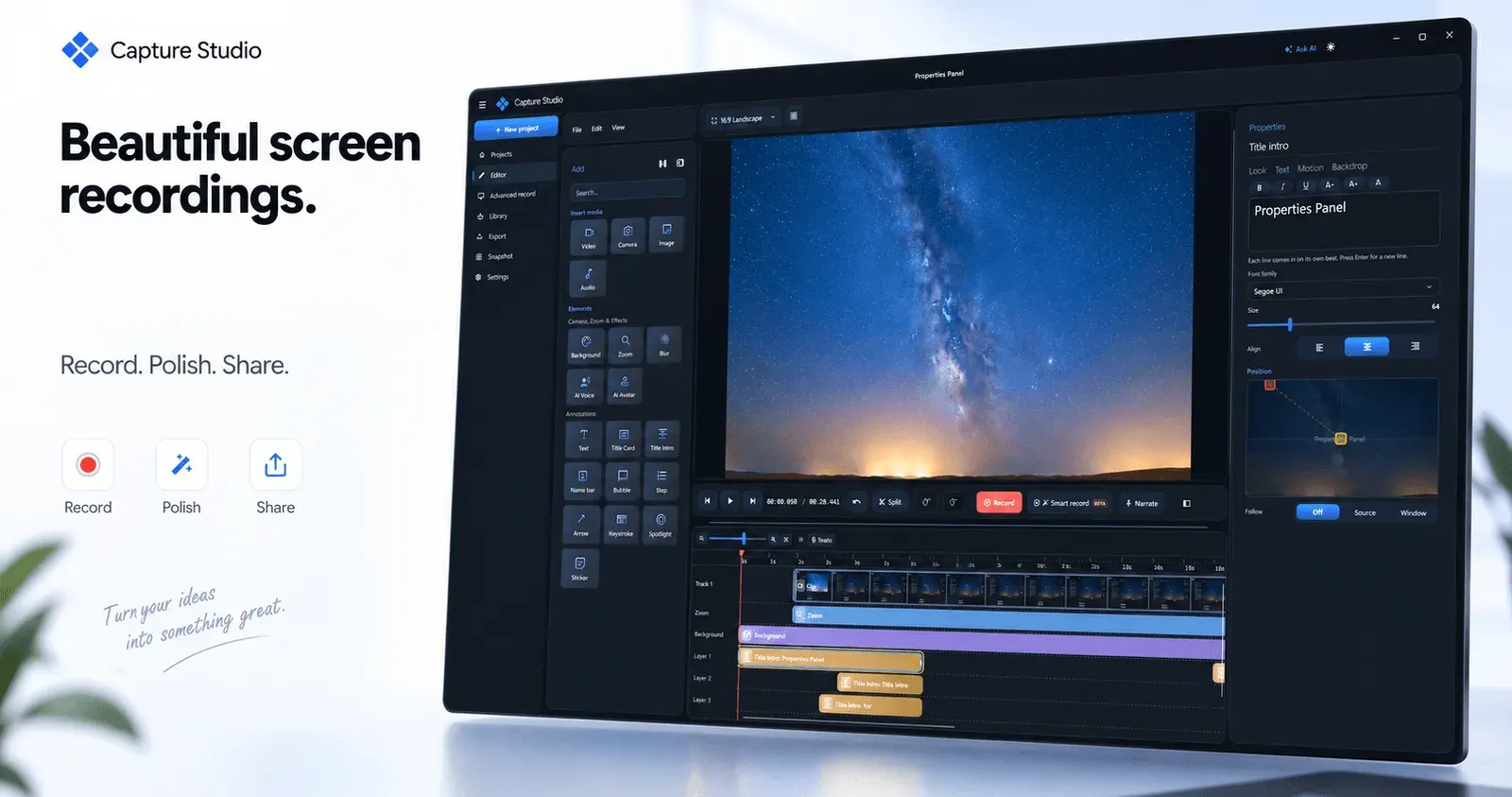
Capture Studio is a Windows-native screen recorder and video editor from OpenHub AS that compresses the entire capture, edit, and export sequence into a single desktop application. Rather than recording raw footage and then migrating it into a separate nonlinear editor, the software finishes the recording inside the same window, applying automatic zoom, smoothed cursor motion, designed backgrounds, on-device captions, and AI narration before a single frame is exported. The premise is simple: raw screen capture is only the raw material, and the tedious assembly work that follows is where most tutorial, demo, and documentation videos quietly stall.
Positioning is deliberately narrow. Capture Studio targets Windows 10 and Windows 11 users who need polished instructional footage without a video production background. It competes indirectly with Camtasia, ScreenFlow, Bandicam, and OBS Studio, but differentiates on two axes. Automation handles the mechanical parts of editing, such as zooming toward a click or drawing attention to a cursor. Locality handles the rest, with the vendor stating that every feature runs on the local machine and that no footage leaves it at any point. That second claim is the more commercially interesting one, because it makes the tool viable for teams recording internal systems, client deliverables, or anything covered by a confidentiality agreement.
What is Capture Studio?
Capture Studio is a screen recorder and video editor for Windows that captures a full screen, a single window, or a hand-drawn region at up to 120 frames per second, then finishes the footage with automated editing tools. Its purpose is to close the gap between recording and publishing, which for most creators means exporting a file, opening a separate editor, trimming dead air, manually keyframing zoom points, and burning captions in by hand.
The problem it addresses is not capture quality, which has been broadly solved for a decade, but post-production friction. A software demo recorded in four minutes can consume forty minutes of editing. Capture Studio attacks that ratio directly with cursor-aware zoom, click highlights, keystroke overlays, and automatic subtitles, all generated from the recording itself rather than added by hand.
The audience is broad but coherent: SaaS teams producing onboarding videos, technical writers generating click-by-click documentation, educators building course material, freelancers delivering client walkthroughs, and support organisations recording reproducible bug reports. Because the application is Windows-only and sold as a perpetual licence rather than a subscription, it also appeals to buyers who have grown weary of monthly seat pricing for occasional recording work.
Against alternatives, Capture Studio stakes its claim on three things: automation depth, a genuine multi-track timeline rather than a trim-only utility, and a one-time purchase model that includes the AI voice and avatar engines in the entry tier.
Key Features
Smart Zoom That Follows the Cursor. The headline capability is automatic zoom that tracks where the pointer goes and where clicks land. When a user clicks a menu item, the editor zooms toward that region without any manual keyframing. Manual keyframe zoom remains available for creators who want precise control over pacing, so the automation is a starting point rather than a cage.
Timeline Editor with Live Effects. This is a real multi-track editor, not a clipping tool bolted onto a recorder. Trimming, zooming, and effect placement all happen on a timeline while a live preview shows exactly what will be exported. The distinction matters because many screen recorders force a round trip into a second application for anything beyond trimming the head and tail.
Automatic Subtitles and 85 Neural Voices. On-device speech-to-text converts narration into styled captions with automatic language detection, and the voice engine offers 85 neural voices across 22 languages. Creators can also clone their own voice from roughly a ten-second sample and then narrate entire projects in that voice, which removes the need to re-record audio after a script changes.
AI Avatars and Camera Overlays. Studio Avatar provides a presenter that delivers narration on camera with lip synchronisation, so a creator never has to appear on screen. The vendor is candid about the current limits here: the avatar works with two standard female voices and most premium female voices, with additional avatars planned.
Smooth Cursor, Click Highlights, and Keystroke Overlay. Pointer motion is smoothed and polished, clicks produce visible ripples, and pressed keys can be displayed on screen. For tutorial and shortcut-focused content, the keystroke overlay removes the single most common viewer complaint, which is not knowing which key combination was used.
Documentation Export and Privacy Blur. A Snapshot mode follows and snaps every step, captures written text, and exports to Markdown, PDF, HTML, or PowerPoint Show, turning a recording session into written documentation. Separately, keyframed privacy blur regions can hide passwords, faces, or sensitive data and can autotrack moving windows.
Additional capabilities round out the toolkit: noise cancelling to strip fan hum and keyboard clatter, floating displays with rounded corners and soft shadows, alignment guides, background gradients, stinger-style slide-ins, Android screen mirroring through developer mode, portable project export that bundles media with the project, and region, window, or full-screen capture at up to 120 FPS. A full list is available on the feature section of the site.
How It Works
The workflow begins with installing the desktop client on a Windows 10 or Windows 11 machine. There is no web account gate before recording and no browser-based capture surface, which means the first run is installation, licence activation, and then straight into the recorder.
Recording starts by choosing a capture target: the entire screen, one specific window, or a region drawn with the mouse. Frame rate is selectable up to 120 FPS, subject to hardware capability and disk write speed, and the vendor notes that a 60 Hz monitor will realistically produce 60 FPS. Audio input, webcam overlays, and microphone tracks are configured at the same stage.
Once recording stops, the footage lands on the timeline rather than in a file browser. The first pass is usually trimming and ordering clips, work that happens with a live preview so the result is visible immediately. From there, effects are layered on. Smart zoom can be applied automatically and then adjusted, click ripples appear where the pointer registered a press, keystroke overlays populate from actual input, and background or floating display treatments reframe the capture for a designed look.
Audio receives similar treatment. Noise cancelling removes room tone, and narration is either recorded fresh, synthesised from text using the neural voice engine, or cloned from a short voice sample. Subtitles are generated on device and styled to match the project. Privacy blur regions are placed over anything sensitive and can autotrack if the underlying window moves.
Export is the final step, and the project can also be bundled with all of its media into a portable package for archiving or transfer to another machine. For documentation rather than video output, Snapshot mode exports the captured steps to Markdown, PDF, HTML, or PowerPoint Show. The public roadmap outlines what the team intends to add next.
Use Cases
SaaS product demos and onboarding walkthroughs. A product marketer records a fifteen-minute feature tour, applies automatic zoom so viewers stay oriented on each click, adds subtitles for silent autoplay on a marketing site, and publishes the same day. Without automation, that clip typically requires an afternoon of keyframing.
Technical documentation and knowledge base articles. A technical writer uses Snapshot mode to capture a click-by-click procedure, lets the tool extract the text and step sequence, and exports directly to Markdown for a docs repository or HTML for a help centre. The same recording can be trimmed into a short embedded video, giving teams written and visual versions from one session.
Course and tutorial production for educators. An instructor making a coding course records keystroke overlays so students see shortcuts in real time, uses the cloned voice to re-narrate a module after a script revision, and relies on automatic captions for accessibility compliance. Noise cancelling keeps a home office recording usable without a treated room.
Client walkthroughs and internal QA reporting. An agency or an engineering team records a reproducible bug or a client-facing prototype review. Privacy blur hides credentials, tokens, or customer data before the file is shared, and the fact that processing stays local satisfies internal security review. Android mirroring allows a phone workflow to be demonstrated alongside desktop software in the same timeline.
System Requirements and Hardware Considerations
The base application is undemanding by modern standards. Minimum specifications call for Windows 10 64-bit, a four-core 2.5 GHz processor, 8 GB of RAM, a DirectX 11 GPU, and 6 GB of SSD space. Recommended specifications rise to Windows 11 64-bit, eight cores at 3.5 GHz, 16 GB of RAM, an NVIDIA RTX 2060, and 10 GB of NVMe storage.
The AI features carry their own requirements, and this is where buyers should read carefully. Studio Voice lists an RTX 2070 as the minimum and an RTX 2080 as recommended, with 16 GB of RAM in both cases, and roughly ten seconds to generate a ten-second voice take. Studio Avatar is lighter on graphics, starting at an RTX 2060 with 8 GB of minimum RAM and 16 GB recommended, and also renders about ten seconds of output in ten seconds. Practically, that means a workstation without a recent NVIDIA card can still record and edit, but the neural narration and avatar modules will not be usable. The vendor is unusually transparent about this, labelling both engines as small neural models designed to run on consumer hardware.
Pricing & Value
The commercial model is a perpetual licence rather than a subscription. The Early Bird tier is listed at €119.00, discounted to €85.00 as a launch offer, and includes a lifetime licence plus one year of updates. It also bundles both premium add-ons, Studio Voice and Studio Avatar, which are otherwise sold separately at €21.20 each as one-time purchases that extend an existing licence using the same key.
There is no free tier and no advertised free trial, which is the most significant friction point for a category where OBS Studio is free and Camtasia offers evaluation options. Against those, the €85 launch price is aggressive for a perpetual licence that includes AI voice generation, voice cloning, avatar rendering, a multi-track timeline, and documentation export. Buyers who only need mirroring, noise cancelling, and captions pay a modest amount for software that avoids any recurring charge. The pricing section documents the tiers and add-ons in detail.
How Capture Studio Compares to Alternatives
Against Camtasia, the closest direct competitor, Capture Studio is cheaper upfront and perpetual, and its automation is arguably more aggressive, particularly around cursor-aware zoom and keystroke overlays. Camtasia counters with a longer track record, cross-platform support, and a larger template and asset ecosystem. Against OBS Studio, Capture Studio trades away streaming and infinite configurability for a comprehensible editing workflow; OBS records beautifully but edits nothing. Against ScreenFlow, the obvious limitation is platform, since ScreenFlow is macOS-only and Capture Studio is Windows-only, so buyers rarely choose between them. Against general purpose editors like DaVinci Resolve, Capture Studio wins on speed for instructional content and loses on colour work, compositing, and advanced audio.
Frequently Asked Questions
Is Capture Studio free to use? No. There is no free plan and no advertised trial. The software is sold as a one-time purchase, with the Early Bird licence currently listed at €85.00 down from €119.00, and premium add-ons priced at €21.20 each if purchased separately.
Does Capture Studio work on Mac or Linux? No. The application is built exclusively for Windows 10 and Windows 11, 64-bit. Creators on macOS would need a different tool, which makes platform the single most important purchase criterion.
Do the AI voice and avatar features require an internet connection? The vendor states that every feature runs on the local machine and that no footage leaves it. The trade-off is hardware: Studio Voice requires an RTX 2070 or better, and Studio Avatar requires an RTX 2060 or better, so older laptops will not be able to run those modules.
What video formats and exports are supported? The site highlights video export with a live preview of the finished result, plus portable project export that bundles a project with all of its media. For documentation, Snapshot mode exports to Markdown, PDF, HTML, and PowerPoint Show.
How does Capture Studio compare with Camtasia? Capture Studio is a one-time Windows purchase with strong automation and local AI narration, while Camtasia is a subscription or higher-cost perpetual product with broader platform support and a larger asset library. Teams that need macOS support or deep template ecosystems should weigh that carefully.
Final Verdict
Capture Studio is a focused, well-executed answer to a real problem. The automation is the differentiator, and it is the right kind: smart zoom that follows clicks, keystroke overlays, click ripples, on-device subtitles, and noise cancelling all remove work that creators otherwise perform manually on every single project. The multi-track timeline with live preview means the tool is genuinely an editor rather than a recorder with trimming, and the Snapshot documentation export is a quietly valuable feature that most competitors do not offer in the same package. Local processing plus privacy blur also make it defensible for internal and client work.
The limitations are equally clear. There is no macOS or Linux version, no free tier, and no trial, which raises the cost of evaluating the software. The AI voice and avatar engines demand recent NVIDIA hardware, so the most heavily marketed features are unavailable to a meaningful slice of potential buyers, and the avatar currently supports a limited set of female voices with more promised later. The interface and roadmap also indicate an actively evolving product rather than a finished one.
For Windows-based creators who produce software demos, tutorials, course modules, or support documentation and who want to stop paying monthly for occasional recording work, Capture Studio is a strong candidate, particularly at the launch price that includes both AI add-ons. Buyers on macOS, on older hardware without an RTX-class GPU, or in need of a free starting point should look elsewhere before committing.
Pros & Cons
Pros
- Automated smart zoom follows cursor clicks and movements, eliminating most manual keyframing work in tutorial and demo videos.
- All capture, editing, AI narration, and subtitle generation run locally on the machine, so no footage or audio is uploaded to a third party service.
- A genuine multi-track timeline editor with a live preview ships in the same application as the recorder, avoiding a round trip to separate editing software.
- The Early Bird licence is a one-time €85 purchase that bundles the Studio Voice and Studio Avatar premium add-ons with a year of updates.
- Snapshot mode captures click-by-click steps and exports structured documentation to Markdown, PDF, HTML, or PowerPoint Show from the same recording session.
Cons
- The application is exclusive to Windows 10 and Windows 11 64-bit, leaving macOS and Linux creators without a version to evaluate.
- There is no free plan or advertised trial, so prospective buyers must commit to a purchase to test the workflow properly.
- Studio Voice requires an RTX 2070 or better and Studio Avatar needs an RTX 2060 or better, meaning the advertised AI features are unusable on older or non-NVIDIA hardware.