BlazePDF is a focused desktop PDF reader for students, combining keyboard-first annotation, image insertion, and Smart Duplex printing in one offline workspace.
What is BlazePDF?
BlazePDF is a focused desktop PDF reader and annotation workspace built for academic study rather than generic office document handling. It tackles a problem most students recognise immediately: a single semester produces a mountain of lecture slides, readings, revision notes, textbook chapters, research papers and past papers, and conventional PDF tools treat all of that as disposable paperwork instead of study material. BlazePDF gathers reading, annotation, page organisation, metadata editing and printing into one environment so a study session does not fracture across several applications. Its stated audience is students, and the product is described by its makers as built for students, by students. The reader runs offline and needs no account, and the company frames privacy as a default rather than an upgrade.
Key Features
- Flow Mode for keyboard driven annotation. Flow Mode is the centrepiece of the reading experience and is designed around keyboard first annotation, allowing a student to move through a document and mark it up without losing concentration. The drawing toolset covers pen and marker strokes, word aware highlights, editable text boxes, shapes, arrows, lines and image placement, with erasing, undo and redo available throughout a session.
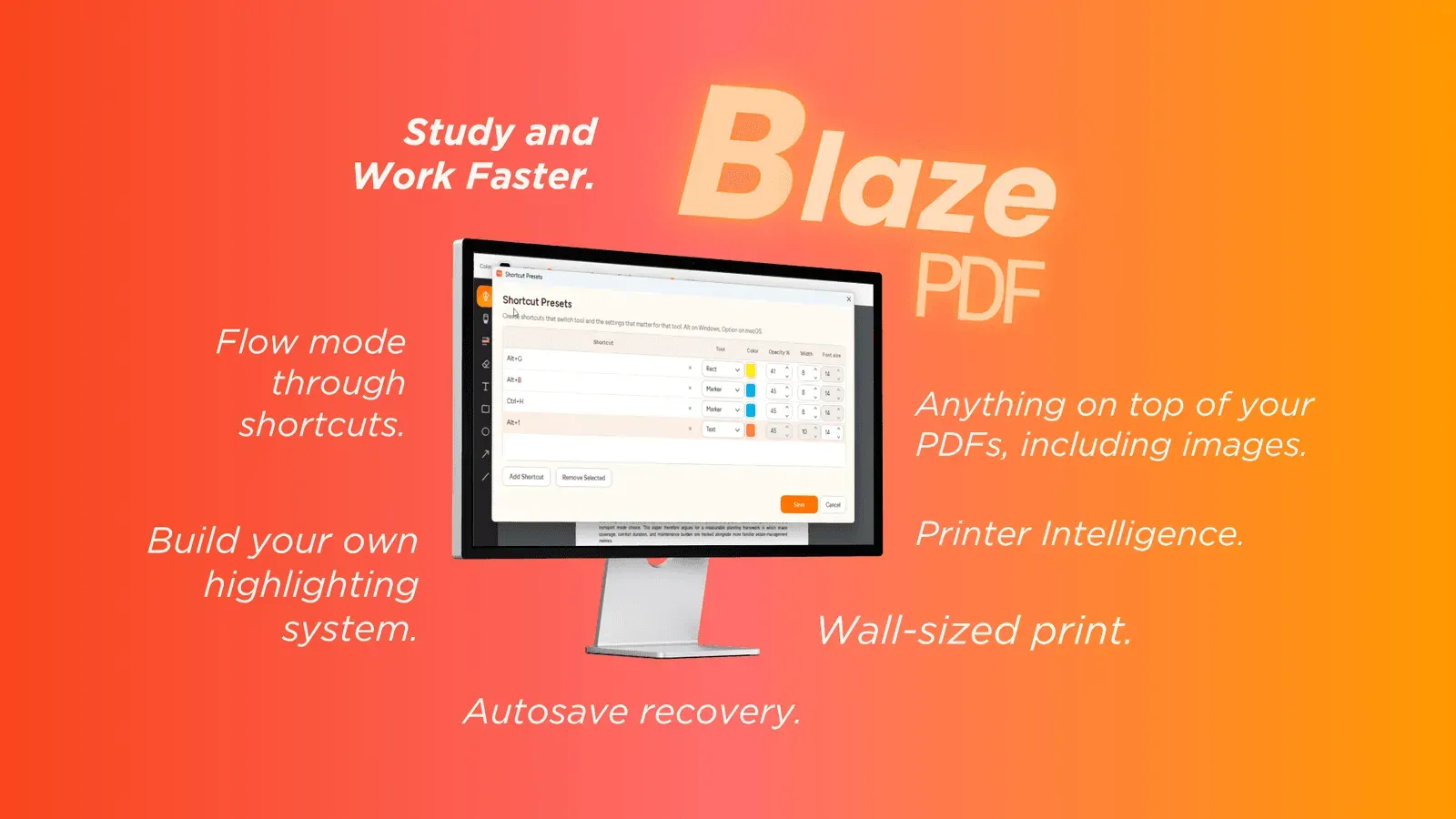
- Reusable tool presets. Rather than reconfiguring colour, width and opacity for every individual mark, students can save tool presets so one shortcut restores the exact settings used for a specific kind of note. It is a modest convenience that compounds across long revision sessions.
- Page tools with editable export. BlazePDF can insert blank pages, import images, reorder pages and export a clean, visible PDF. Unlike annotation layers that remain trapped inside a proprietary viewer, the markings here are stored as editable BlazePDF metadata, which means notes stay changeable when a document is reopened.
- Search across native PDF text. Native text search lets a reader jump straight back to a passage, definition or figure reference instead of scrolling through hundreds of slides.
- Smart Duplex printing. Smart Duplex prepares two sided output for printers that require a manual second pass and explains how the paper should be reloaded, removing the guesswork from double sided printing at home or in a campus lab.
- Poster Enlargement. One large diagram or dense page can be tiled across several sheets, with a preview showing how the pieces fit together. BlazePDF presents the whole plan before printing so orientation and assembly mistakes surface early rather than after the paper is wasted.
Privacy and Offline Operation
BlazePDF runs as a local desktop workspace. Opening, reading, annotating, searching native PDF text and exporting all happen on the machine, and local files remain on the student's computer. The desktop reader requires no account to function. Optional account features and AI OCR are separate capabilities that begin only when a user deliberately chooses them, and the company states that document content is not used to train generalised AI models. For students handling unpublished research drafts or personal notes, that local first posture is a meaningful part of the value proposition. One practical caveat is that the product is positioned squarely as a desktop workspace, so the experience is anchored to a laptop or desktop computer rather than a tablet or phone.
Use Cases
- Exam revision. A second year undergraduate sitting on forty slide decks and a stack of past papers works through the material in Flow Mode with saved tool presets, keeping colour coding consistent across modules, then uses native text search to return to flagged definitions during the final week of revision.
- Printing at home. A student with a single sided home printer needs a two sided handout. Smart Duplex plans the manual reload step in advance and shows the output layout, which means fewer ruined sheets and no trial and error at the printer.
- Oversized diagrams. Someone studying anatomy, engineering or architecture turns a wall sized chart into tiled sheets with Poster Enlargement, producing a physical poster that can be pinned above a desk for daily reference.
Frequently Asked Questions
Is BlazePDF free for students? BlazePDF is offered as a free download for students, and additional plan options are listed on its plans page, so the final cost depends on the tier a user selects.
Does BlazePDF require an account or an internet connection? No. The desktop reader works offline and does not need an account, while account based features and AI OCR are activated only when a user opts into them.
How does BlazePDF differ from a standard PDF viewer? It is designed around studying rather than general document handling, pairing keyboard focused Flow Mode annotation with page tools, editable metadata export, text search and student specific printing utilities in a single workspace.
Who is BlazePDF intended for? It targets university and college students working with lecture slides, readings, revision notes, textbook chapters, research papers and past papers, although anyone reading long form PDFs for learning fits the profile.
Pros & Cons
Pros
- Purpose built for academic study, bundling reading, annotation, page editing and printing into a single desktop workspace instead of scattering them across several apps.
- Flow Mode and reusable tool presets enable keyboard first annotation that keeps long revision sessions fluid and consistent in colour, width and opacity.
- Annotations are stored as editable BlazePDF metadata, so highlights, text boxes and drawings remain changeable when a document is reopened.
- Smart Duplex and Poster Enlargement solve the awkward print jobs students actually face, previewing the layout before anything reaches the printer.
- Offline, account free desktop reading keeps local files private, with optional account and AI OCR features activated only by explicit user choice.
Cons
- The product is positioned as a desktop workspace, so students who read mainly on tablets or phones have no described native experience.
- Several of the most distinctive capabilities centre on printing, which reduces their relevance for entirely paperless study habits.
- Account based features and AI OCR sit outside the default local workflow, so users wanting sync or AI assistance must leave the offline mode behind.